Monthly Archives: March 2008

Just Checking In For A Moment!

I have been off the grid since my last post. It has been a very busy week and this weekend is going to fly by! We hosted the District UIL met at our school this weekend and while my part is small, it was fun with lots of payback. I coach Computer Applications (my first year) and my student took fifth place which I think is wonderful considering this was her first year to compete. My own kids attend school in the next district – a weird think I know but we are a small area geographically but have three school districts. My daughter placed second in Computer Applications and My son placed third in Extemp (I hope I have that right or I will never hear the end of it!)

A friend is at WordCamp Dallas 2008 this weekend and I hope learns some great stuff to share. I would love to have gone but too many conflicts this weekend! I will have to be content with searching for posts to read to live vicariously!

We have joined a small group bible study and we meet on Tuesday nights so that is one night we are busy, and then we are trying to attend two different churches right now which is confusing but we are trying to work out some things. One place has incredible teaching. the other has definite issues but we went there for years and many of the people there are like extended family. We have gotten involved with a small Sunday night praise service and tomorrow morning there will be a youth led service and then in the evening we will continue that theme but I AM TO GIVE THE MESSAGE. I have been struggling with this all week. I would have preferred a skit but they are doing one with the kids in the morning.

I’m relying on Luke 15 and the parable of the Prodigal Son but I’m concentrating on the eldest son. I would really like it to have meaning and bear fruit and I don’t want it to be about me. If you are a praying person I would ask for your prayers for this service that I would disappear and the Word would do whatever God needs it to do in this place and at this time.

There will be very little rest this weekend so I’m going to crash and burn early. I still need to do some more writing and tweaking. This is the first and maybe the last time I will ever do this – it is such a huge responsibility. I can’t imagine what it would be like to do this week after week. I AM looking forward to the kids’ skit. They will be goofy and cute and forget stuff but isn’t the way it always is?

For now world, goodnight! I will try to get some more tutorials up in the next few weeks.

Spring Break Update And A Little Mac Tip

It has been an “unbusy” week. Spring Break means no school so we have enjoyed family time. There has also been sleeping-inage which has been great!. We went for a drive up in Arkansas (which is becoming a major luxury considering the ridiculous pride of gas these days) , had a family shopping day and did a little closet cleaning and catching up on housekeeping chores. The firewood has been moved out to the back fence and the back porch has been polished up and we ate supper out there tonight.

I helped the praise band at church set up a blog – they now have a name: “The Damascus Road Experience”. I get to sing a little harmony with them but if they ever get a bus I am relegating myself to “roadie” and resident geek.
I will get back to tips and hints for the Mac and PowerPoint tutorials soon. A short hint for tonight: If you have a Word document and want to open it in Pages just drag the document onto the Pages icon in the dock. It will open in pages. If there is much in the way of formatting you may lose the formatting but you will have the basic document. I have already learned that automatic page numbering in the header does some weird things. You can do the same thing with Excel and Numbers or Keynote and PowerPoint. Again this is only a good idea if there is no fancy formatting going on.

Interesting and Scary Article – Outsourcing Patients

What I’m reading – The Last Book In The Universe by Rodman Philbrick

Best TV show ever? The Big Bang Theory (I’m so glad the writer’s strike is over)

Best movie I’ve seen lately – August Rush (yes it is a little corny and some of it is a bit of a rip off on Oliver Twist but Freddie Highmore has the most enchanting smile I have ever seen and you just feel good at the end of the movie – which is becoming rare.)

Happy Resurrection Day tomorrow everyone!

Just A Few “Little” Mac Tricks

While there are jobs that need a full fledged word processor, there are multiple times during the day when I just need a place to put some text. I don’t want columns or hanging indents or layer upon layer of formatting. I just want to type some words! One of the applications that you will find hiding in your application folder is called TextEdit. Open it and then right-click on the icon in the dock and choose keep in dock. Aside from the fact that it is just a nifty little word processor there is another little trick you can do with it.
textediticon.jpg
This is one of those tiny little Mac things that is not hugely important but it just makes you smile. If you frequently run across snippets of text on the web that you want to save or email someone the Mac has a few ways to make this easy. Just select the text. If you are using Mail.app, you can drag the text onto the icon in the dock and it will open up a message with the text in it – all you have to do is add the addressee and click send.

If you have the TextEdit icon in the dock, you can drag the selected text onto the icon and TextEdit will open with the text already inserted. Now if it a large amount of text and you want a summary there is one more trick. Highlight the text in TextEdit and click on TextEdit in the upper left corner of your screen. Click on services and you will see a list of things that you can do. this list changes depending on what application you are in and what software is installed on your Mac. Right now we are going to choose Summarize. You can choose summarize by sentence or paragraph and you can adjust the size. When you click to close you will have the option to save or discard. Go on – give it a try. These are some of my favorite tips!

Friends and Family and Healing

From Derricks and Diamonds, the philanthropic organization supported by Schlumberger and National Oilwell Varco has an article about a member of Dale’s family (Dale’s check-up went fine by the way!)

Here is the article:

Sage Martin – Update

March 10th, 2008 by Sean McCoy in News | Many of you have read about Sage Martin on our Our Inspiration page. We received an update from his father Gary today.He is still in the Bone Marrow Transplant Unit with the possibility of two more weeks of treatment. While the chemotherapy has caused him to loose his hair he took it in stride with the understanding and calm of a person far exceeding 10 years of age.

He is showing improvement in two vital areas after receiving the bone marrow transplant. His total white blood cell count is at 240 per micro/liter up from the 10 per micro/liter he had when he checked in. The normal white blood cell count is 5000.

His Absolute Neutrophil Count was 0 for 5 days and went to 10 on his 10th birthday (Friday March 7th) but as of today has raised to 170. Normal is 1500 or more and a count of less than 500 is considered severe neutropenia.

The good news is he’s getting better and responding well to the treatment. Gary and the rest of Sage’s family appreciate the kind words, concerns and prayers for them during this time.

_____________________________________________

My good friend is spending time saying goodbye to his family dog of twelve years this weekend. She is going down so quickly and is not able to eat or do much of anything and I know the whole family is hurting.

_____________________________________________

Last night I went to the church where we watched The Passion Of The Christ in the gym. There were just a few of us but that’s okay. I worked on the computer on the PowerPoint for this Sunday evening – not out of disrespect for the subject matter but because I knew there were parts of the movie that I would not watch. I closed my eyes for some of them when I saw the movie at the theater when it first came out.

I guess if the intent was to get people to understand the magnitude of the sacrifice that was made for us then that point was certainly ahem…hammered home. Today in most mainstream churches we tend to shy away from talking about THE BLOOD. We may say it fast as in “thebloodoftheLamb” which takes away the sin of the world. We might sing about it in hymns – “What can make me whole again? Nothing but the blood of Jesus”

I like to hear about grace. I’m not so fond of hearing about how it was bought. Jesus sacrifice was painful, messy, and bloody. But throughout the Old Testament we see that it was blood sacrifice for atonement of sins that cleansed God’s people and made a way for them to come into His presence. I thank God for Jesus sacrifice. I thank God for His healing grace. As much as I like you Mel – I think you stopped the movie at the wrong place.

I’d like to see the movie go on to tell, as Paul Harvey would say – the rest of the story. We leave the movie with images of pain and how horrible we humans can be. If we weren’t vile there would be no need for the sacrifice. There would be no need for a savior. But we have God’s love anyway. The sacrifice Jesus made was not just for “nice” folks. It was for the very people who beat Him, mocked Him, and nailed Him on that cross. If He could do what He did for them – then surely He did it for you and I, and if He did it for us, then surely we can try to forgive and love others as He did. Surely we can believe that there is a resurrection for us too? Good Fridays and Easter Sundays – they come all our lives.
We all go through these seasons of sacrifice and pain and thankfully they are often followed by seasons of healing and grace. I pray that this Easter season is one of healing and grace for you and yours. If it isn’t, then I hope you will take strength and comfort in knowing that it will come. It may not take the form we wish but God WILL bring healing.

“On Christ the solid rock I stand, all other ground is sinking sand”

Some Mac Nuts And Bolts

If you are new to the Mac you will see that a lot of your programs have icons in the “dock” – that area at the bottom of your screen with all the cool pictures! You can click on those icons to launch programs

machdicon.jpg

You can launch programs from the dock but not everything is there. You can also click on the icon in the upper right hand corner of your screen called “Macintosh HD”.

You will now see several folders listed and you will click on the Applications folder to open it – there are your programs!applications.jpg
Another way to find your programs is to use the finder
The finder also brings up several folders and you can click on the applications folder from here. The Finder could be compared to Windows Explorer.

finder.jpg

If you find a program you want to install it is usually as easy as downloading the file and then double

clicking. Let’s use Firefox for an example –

firefoxlink.jpg

When you install software on a PC you usually use a setup file that has the extension .exe – on a mac you usually download a dmg file.

You click on the dmg file and you may have a file that looks similar to the image on the right – it’s called a disk image.  After you drag the app file to your applications folder you will ctrl click on this disk image and “eject” it.

dmgimageeg.jpg

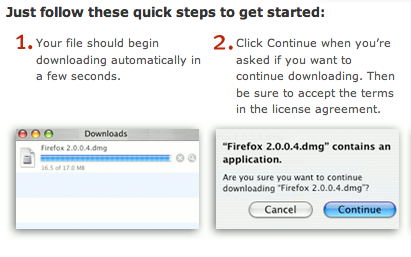
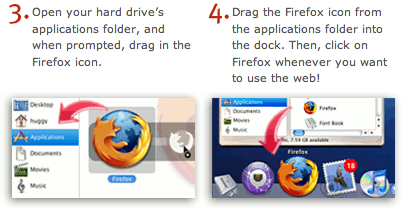
In the case of Firefox you will download the dmg file and on the same page you will have great instructions for what to do next. The screenshots below are what you will find on the Firefox page.

firefox12.jpg

firefox34.jpg

Basically you click on the dmg file. You then drag firefox.app file into the applications folder and you are done. When you double click it the Firefox icon it will open and the icon will show in the dock. If you use it all the time you can right-click or command-click and choose leave in dock. It will now stay in the dock even when you close it.

You can also right-click icons in the dock and choose remove from dock. This does not remove the actual application – it is still in the applications folder. You just don’t have the icon sitting in the dock anymore. You can do this with programs you rarely use to clean things us a bit.

Soooo – the Macintosh HD icon is what you click to find the main folders, including the Applications folder where your programs live. If you want to install software you will download a dmg file (sometimes it may be a zip file) that you click to open. Drag the app file to the Applications folder and you have installed your first program on your Mac!

Make Screenshots With Your Mac

Do you want the whole screen?
Command-Shift-3: Take a screenshot of the screen, and save it as a file on the desktop

Do you want just the window you are working in?
Command-Shift-4, then space, then click a window: Take a screenshot of a window and save it as a file on the desktop

Do you want to select a particular part of the screen?
Command-shift-4  (your cursor will become a cross you can drag across and down to select the area to make a screenshot)

Now if you want to take the screenshot and just save it to the clipboard you will do the same thing only add ctrl.  For example: Command-Control-Shift-3
The same with the others – just hold down ctrl too.  Why would you want to do this?  Instead of having this picture sitting on your desktop you might want to open your email and paste it there and send it to me to show me a problem you are having.  You might want to paste the picture into a document or a presentation to show a step in a process you are teaching.

If you just got your Mac, you’re operating system version is Leopard and you can also do the following:
Hold down space to lock the size of a selection and move it when the mouse moves.
Hold down shift to resize only one edge of the section
Hold down option to resize selection without the center moving.
(Because I am using Tiger I haven’t had the opportunity to try those last keystrokes out but I have used the other commands often.  If I have made an error with these last commands I hope someone will let me know!)

Switching To A Mac Part 2

safariIcon.jpgHow do I get to the internet using my Mac?
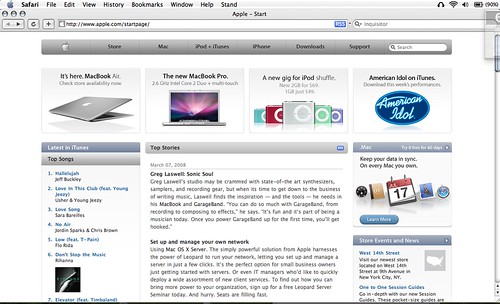
The Mac comes with it’s own internet browser called Safari. Look for the icon that looks like a compass. Things will look very similar to any other time you have gone to the internet. Whether you have used Internet Explorer or Firefox you will see the webpage, a box that contains the URL or web address, and buttons for maneuvering around. Here is a screenshot that is typical of what you will see:
safariscren

On the left you see the three little round buttons that let you close/minimize, or maximize. Just below them you will see arrows for going backwards or forwards. A button to refresh the page (looks like a circular arrow) and a plus sign which lets you add the current website to your bookmarks (favorites)

Down on the right bottom corner there is a little triangle with lines across it. You will notice that when you click the maximize button in Safari it doesn’t fill the entire screen. You can drag that triangle to make the window even larger.

If you are like me and even the bi-focals are not quite enough anymore there are a couple of key shortcuts that you will love. Command (apple) key and the plus sign makes the text on a webpage bigger. You can press the key combination several times to get things large enough to read. To go back to the normal size just press command (apple) key and the minus or dash sign. If you don’t like keyboard shortcuts you can do the same thing by going to view on the toolbar and clicking make text bigger or smaller.
There is another way to make things easier to see. First practice scrolling by using two fingers on your trackpad. You can drag two fingers towards you or away from you on the trackpad to scroll. If you do this (or use your mouse scroll wheel) while holding down ctrl you will be able to zoom in to particular areas of the screen. Just move the wheel or scroll with two fingers, away from you.
To go back to normal just scroll towards you.

This zooming technique works on everything – not just Safari.

As in everything on the Mac – you can always click help on the toolbar and find answers to your questions there.

There is a box to the right of the URL where you can type words to search for.

If you decide Safari is not your cup of tea you can install Firefox for the Mac. Next time I will talk about how to install an application so you can do just that!

I will be posting on using the Mac for the next few weeks and if you have a question I will be glad to try to find answers for you.

Switching from PC to Mac – Here Are Some Starting Out Hints

1. How do I copy and paste?Apple or Command key (cmd)
this key does a lot of what the control key did on the pc and more
to copy and paste you can use this key with c for copy and v for paste

2. How do I right-click?

The ctrl click is the same as right-click on the pc

3. How do I log off or shut down?

Look in the upper left corner of your screen. Click on the picture of an apple. This menu lets you log off or shut down among other things.

4. What if a program freezes?

you would ctrl-alt-del
On the Mac press Cmd-Alt-Escape

5. How do I close an application or minimize it?

A lot of what was on the right on a pc is on the left on a mac. You will see three buttons on the left top of the application window. From left to right – close, minimize, maximize
You can also you the keys cmd and M to minimize

6. How do I backspace?

pc backspace = mac delete
If you wish to delete left to right like the windows delete key you have to press fn and delete

7. How do I know a program has been shut down?

In Windows, if you are working on a Word document and you close it, then Word is closed too. On the Mac you may close a document, but if you look at the icon in the dock (that’s that strip of programs at the bottom of your screen) you will see a little black triangle under the open programs. If you were working on a document in Pages and closed to document, you will still need to ctrl click on the icon and close the application.

*sorry – The little black triangles are what you see if you have Tiger, if you have Leopard you may have what looks like a little light under the application.

8. Where are all my applications?

If you click on that icon that looks like a hard drive on your desktop, you will see a folder called applications. That is where all your programs are.

More to come later!

PowerPoint Tip – Create Your Content In Word

You can type the content for your PowerPoint presentation in Microsoft Word. If you highlight a section and choose Heading 1 in the formatting toolbar, that section of text can become a slide title. If you highlight another section and choose Heading 2 in the formatting toolbar, that text will become a bullet point. Header 3 will give you a bullet one level in. Normal text will not show up at all.

head12.jpg

When you are finished typing your information, save your text in case you wish to edit or re-use later. Go to File/Send to (click the chevron arrows if necessary to see all the choices) and choose Microsoft PowerPoint.

filesendtoppt.jpg

You now have a basic presentation with all your text already in place. You can now add backgrounds, animations, slide transitions and whatever else you want to dress it up.

pptslide1.jpg

This technique makes it easy to see the flow of your presentation and to see where you might want to add notes if you are creating notes pages for yourself. You could type notes into Word as you work on your original text – just leave the notes as normal text. They won’t show on the presentation when you “send” it but once your Slide titles and bullets have been created in PowerPoint you can switch view to notes page and you can easily paste your notes onto the bottom section and you will have a complete presentation package complete with notes for you to use as you present.
If you’ve ever watched students work on a presentation you know that they tend to want to spend the bulk of their time working on the bling. By creating content in Word and then sending it to PowerPoint you know they are starting with the “cake” and then working on the “frosting”.

If you are ever asked to create a PowerPoint for someone else, you can tell them you would be glad to help and if they will type their information in Word and send it to you you will have it done very quickly for them.

Friday Update (Life In General)

I have been really busy at work lately. I had one day where I was able to spend a large chunk of time on some spreadsheets, but I spend more time on interruptions lately than anything else. I have a hard time recapturing a train of thought that’s been derailed – I need a better system. I seem to spend a lot of time starting things and even more trying to get back to them to get them finished. It’s making me crazy and the piles on my desk just keep getting taller.

Dale had his appointment at the transplant clinic today. He drove himself and went to the Whole Foods Market before he came home. He is doing great. The took him off two medications and lowered another one. He will go back in two weeks and if all is still well they will switch him to every four weeks. All good news.

We are going to a debate meet tomorrow. The kids on the debate team that qualified for Nationals (including my son) made the front page of the paper. I bought multiple copies and showed them to everyone I saw. I’m proud of him, he has worked very hard.