I am just trying out Twitter Tools for WordPress after editing a line to personalize how it is introduced on Twitter. Fun! (now to see if this works!)
Wow, cool! It worked. Thanks to CogDog for the howto 🙂
I am just trying out Twitter Tools for WordPress after editing a line to personalize how it is introduced on Twitter. Fun! (now to see if this works!)
Wow, cool! It worked. Thanks to CogDog for the howto 🙂
I did something today that I have wanted to do for awhile. I have some computers in my lab that are probably some of the first XP Dells ever sold and they have gotten so slow. XP creates profiles for every person who logs on and just deleting them doesn’t seem to speed things up much.
I did a clean install and thought everything was fine but then I couldn’t add it to the domain. The screen resolution was all wonky too. I was so frustrated – I thought this was going to be easy. I asked our tech for help and it turned out it WAS easy – I just needed drivers. I was able to put it on the domain and install Office and the antivirus and the basics like Flash, Adobe Reader, Firefox, and Gimp which I plan to include on all the machines from now on.
We have a lot of kids that are creative and savvy enough to figure out how to use it and I want them to have the software available. I plan to do more machines and hopefully that will improve the quality of the lab over-all.
I have thirty computers coming after Christmas that will have nothing on them – not even the operating system, so this is my practice. Finally, I’m excited about something. We have spent the biggest part of the last month just getting things back to what they were BTC (Before the crash). It’s good to be moving forward a bit even if it means making old new again.
Some things I learned while copying profiles over as we put teacher computers on the new domain:
Outlook express email and address books don’t ALWAYS come with the profile. I’m sure there is some tiny obscure reason why this happens but it would sure be nice if it was OBVIOUS.
Microsoft Windows doesn’t make anything simple.
Many people do NOT know what it means when you ask them to clean out temporary files.
Keyboards are very personal things. After touching so many in one day it starts to feel like I am handling peoples’ tooth brushes (not something to dwell on).
No matter how many times (or how many ways…) you tell someone something important (like what their password will be) sometimes they just don’t hear you.
People really like to be able to print.
Moving Outlook is different from moving Outlook Express.
If there is no administrator password on the local machine you can still get in. Hmmmph, who’d of thunk it.
Even though you technically sit at a computer, you get a lot of exercise walking from one computer to the next…
Next are the student computers – no email to deal with but for the labs that use deep freeze and schoolvue, I’m wondering how complicated it will be. Every extra step adds to the overall time.
The main lesson – put the money out for servers. This is not an experience you want to have first-hand. For the individual computer user – organize and back up!
Jump drives are your friends!
I checked out my Twitter feed this morning and David Warlick was live blogging from TechForum in Austin.
“Social and intellectual capital are the new economic values of the world economy.”
discussed by Sheryl Nussbaum-Beach
The quote reminded me of this:
In Down and Out in the Magic Kingdom (2003) by Cory Doctorow
The usual economic incentives have disappeared from the book’s world. Whuffie has replaced money, providing a motivation for people to do useful and creative things. A person’s Whuffie is a general measurement of his or her overall reputation, and Whuffie is lost and gained according to a person’s favorable or unfavorable actions. The question is, who determines which actions are favorable or unfavorable? In Down and Out, the answer is public opinion. Rudely pushing past someone on the sidewalk will definitely lose you points from them (and possibly bystanders who saw you), while composing a much-loved symphony will earn you Whuffie from everyone who enjoyed it.
As often happens in science fiction, there will be bits and pieces that make the story believable because they will mirror parts of life that are close to present reality. Mr. Doctorow didn’t have the economic incentives part right, but social and intellectual capital sure sounds like Whuffie to me.Another thing mentioned in Mr. Warlick‘s post was that people don’t subscribe to magazines, they subscribe to people.
We all have “our people”; those we listen to, go to, read, learn from, trust, and respect. Where are yours? Are they at your workplace? In your feed reader?
1. This day has flown by because I never stopped moving!
2. I am going to make it my business to learn what is where on the servers from now on!
3. Some of what we thought was gone is not (which is the reason for number 3!) and there is more than one way to keep grades and do an export. You can physically move folders and export files. Not elegant but it works.
4. The weather is getting chilly – time for soup and bread!!
5. I cannot stress enough, the importance of backing things up.
6. If we didn’t have bible study tonight, I would probably be in bed by 7 o’clock.
7. It never seems to amaze me, the people who are the most willing to help in a crisis.
8. I am again reminded that I get dumber when I am tired.
9. I am also reminded that sometimes the best way to learn to swim is to be thrown in the water (and the best way to learn is when you absolutely HAVE to)
10. I am planning on writing more on this blog, even if it is from prompts. I want to write more with the goal of learning to be a better writer. If you read here you may find some strange posts appearing in the future. I am saying this now so that I will be able to hold myself to it!
I think I could have written twenty for Tuesday but I’m going to save it up. I’m going to take a deep breath and let it all go til tomorrow, and to quote Sidney the psychiatrist on M.A.S.H. – “pull down your pants and slide on the ice!”
Sometimes we just need to be silly… 🙂
If you are following Google you know that several days ago a new link appeared on the top right side of the page for New Features. Google Docs has added templates. There are over a hundred for each application and address multiple needs.
I threw together some screenshots on a newsletter template and saved it as a PDF file for you to see, but I say just go there and play around. You can save a template under a new name and customize it with your company logo. You have multiple choices for how to save your new document. At this point you have to click on the new features link to get to the templates but I am confident that the Google folks will incorporate the templates into the document tools menus soon.
GoogleDocsTemplates.pdf
Addendum – I spoke too soon (or too late LOL) If you sign in to Google Docs and click new you can now choose document, spreadsheet, presentation, folder, or FROM TEMPLATE!! Yay Google!
It is called Feedsifter and can be found here
You just put in the URL of the site and then type in the keywords you are interested in and Feedsifter creates a second feed that you can subscribe to. Â Now you have a feed tailored to your interest!
If you have a google account the easiest thing in the world is to sign in. Â Go to igoogle and click add stuff . Â Looking down on the left sidebar you will find a choice for entering a url – paste the feed URL that feedsifter created there and you will now have this feed show up directly on your igoogle homepage.
I have often used del.icio.us to create a feed of bookmarks on a specific subject. Today I created one for googledocs and using Feedsifter I had it make a new feed that would show me only googledoc bookmarks that contain spreadsheet and/or form. Now I have an area that helps me keep up with new blog posts on Google spreadsheets. This won’t be a perfect solution but it helps me narrow down some of what shows up in my reader now.
This tip came from The Simple Dollar – thanks for a great hint!
I finally did something I have been wanting to do for some time. A friend brought me his old computer that was no longer working correctly. It was extremely slow to respond and he had lost the Windows disk so he couldn’t re-install.
Last night I downloaded Ubuntu and burned it to a cd. This afternoon I hooked his old computer up to my monitor, turned it on, and put the cd in the cd drive. All it took was one click and it started loading the files it would need. When it was done it gave the message to remove the cd and reboot.
When I rebooted it gave me the choice to boot into Windows or Ubuntu and that was all there was to it.
It gave me the choice when I was first installing to install Ubuntu with Windows or remove Windows completely. This time I was kind of a chicken but next time I think I will just throw Windows off a cliff.
My kids still have a few issues with Ubuntu and things like flash and I haven’t had time to see if things will work better on thsi version than on the older version that is on the old laptop. I have literally been up and running in Ubuntu for about ten minutes! The only issue I have so far has to do with screen resolution and I will try to get that resolved later. I’m just tickled that it worked and was so simple!
More later – I have company coming!
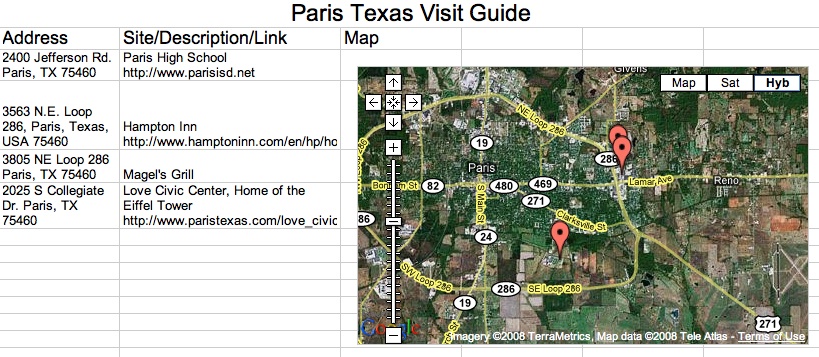
Let’s make a quick guide for someone planning to visit Paris. There is more that could be included but this will be enough to get you started! The instructions came from the Google Docs Blog which is a wonderful resource!
First, determine the sites you will use and open a Google docs spreadsheet
In the first column put the addresses
In the second column put the names and a short description (you can include a link)
Click and drag to highlight both columns
Click Insert on the toolbar and choose gadget
Select Google Maps
You can add a title but you now have a list of sites with their addresses and links and a map to boot! Cool and simple.
Save it, click publish and check the box – republish changes and you can continue to add to it and you can email a link to it to your friends and family!
Here is a link to mine:
http://spreadsheets.google.com/pub?key=pgVdUefx1CH0V_U5tumJrHw
Here is a screenshot:
This is an experiment to see if I can embed a Google Docs spreadsheet and then see if it will update on my blog as the data is populated via forms.
I will post results of this experiment in the comments.
Here is my handout. Some of it is covered in other places in this blog. It was created on a Mac using Pages. I am trying to get more comfortable using the iWork software and I think that while it is not as much of a workhorse as Word it was fun and easy to export as a PDF.
Jumpdrive
Create a folder
PowerPoint Backgrounds and creating content in Word
Adding Sound to PowerPoint and making the music play across multiple slides
Creating Screenshots
Creating a group in Outlook Express
Locking your computer
Word Tips
FireFox
End of year grade export
A couple of things I played with tonight – Google maps has added Wikipedia and evidently had already added photos. The photos are hosted by Panoramio and you can get to them or Wikipedia articles when in Google maps by clicking more and checking the appropriate box. I spent some time moving around just looking at pictures around the country and clicking to read Wikipedia articles – Google is opening up it’s geo search application and allowing other websites to use geographically linked information.
Another “toy” I played with tonight is Powerset which is a start-up that is trying to come up with a better way to search. You type in your criteria using “natural language” and so far it is only searching Wikipedia but I typed in several searches in the form of questions and it seemed to respond in a pretty accurate range for what I was searching for.
TeachersFirst.com had this for the question of the week recently. Below it is my response.
Some teachers create their own MySpace and FaceBook accounts. Some have personal blogs. A recent article in the Washington Post details indescretions by teachers in such public spaces. If a teacher wants to have a personal web presence, what guidelines or advice would you give to him or her about what should/should not be shared online for the world to see, and why?
Having a presence on the web is like having a picture window into your life. Anyone driving by will form an opinion of you by what they glimpse through that window. If you are dancing around with your lampshade on your head – they are going to make a snap judgment. Every picture, every post, every song playing on your website creates a picture of you for someone who visits. If you are a teacher and have not learned what is and is not appropriate in public then you have bigger problems than the internet.
It doesn’t matter if it is correct, the opportunity to make an impression has passed and if it is a bad one it will be very difficult to change even if you get the chance which in most cases you won’t.
If you are the type of person that sweeps the floor, dusts and straightens up for company then do that on your website as well because company will be coming and going most times without you even knowing it.
In education this is even more crucial. Whatever is on your website may as well be on the principals’ desk, the school board meeting, the local newspaper, or a students iPod. This doesn’t mean we shouldn’t use it. We should just use it for what it is – a tool to communicate. It is not and never has been your private diary with pictures and sound.
Our students are now creating content on the internet. We have a wonderful teaching opportunity if we choose to utilize that capability. That means we have to get on the bus with them – not stand on the sides wringing our hands. We just need to have a destination in mind and plan accordingly.
Amen?
Daniel Pink has a new book out and I am planning on reading it but until I can get an actual copy in my hand here are goodies to share.  Garr Reynolds has created a presentation with an overview and a few of his own ideas. It is definitely worth the watch. The book is The Adventures of Johnny Bunko: The Last Career Guide You Will Ever Need.  Â
An article in Business Week says this:
Â
In Japan, no subject is too serious or too pedestrian for manga. Comic books about financial management are popular. The True Life of Carlos Ghosn, a series about the head of Nissan Motor (NSANY), sold well. And a two-volume manga account of the country’s economic development has become a classic.
As for those who are still dubious about the, uh, value proposition of a business comic book, Pink offers this pitch for manga: It provides maximum efficiency of expression.
Â
You can watch Garr Reynolds presentation here and also download a pdf if you prefer a paper copy.Â
I have not been a big fan of manga but as I read more online and the pile of books next to my bedside table grows taller than the table, it may be worth a second look. My experience thus far has been the kind that high school students want to read and is often not appropriate for school.  I am interested to know if anyone knows of more manga style books that are reference or informational. If you have any suggestions I’d love to hear about them.
While there are jobs that need a full fledged word processor, there are multiple times during the day when I just need a place to put some text. I don’t want columns or hanging indents or layer upon layer of formatting. I just want to type some words! One of the applications that you will find hiding in your application folder is called TextEdit. Open it and then right-click on the icon in the dock and choose keep in dock. Aside from the fact that it is just a nifty little word processor there is another little trick you can do with it.
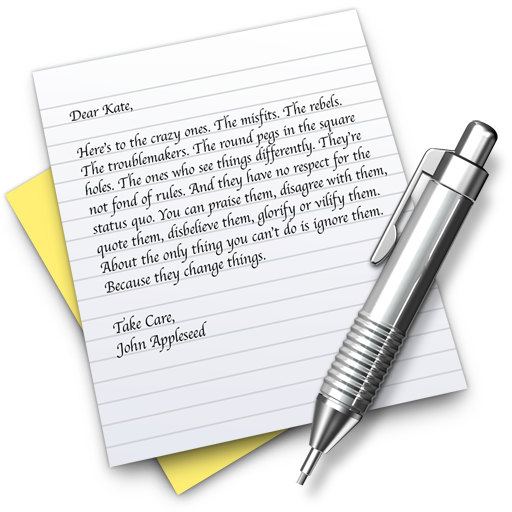
This is one of those tiny little Mac things that is not hugely important but it just makes you smile. If you frequently run across snippets of text on the web that you want to save or email someone the Mac has a few ways to make this easy. Just select the text. If you are using Mail.app, you can drag the text onto the icon in the dock and it will open up a message with the text in it – all you have to do is add the addressee and click send.
If you have the TextEdit icon in the dock, you can drag the selected text onto the icon and TextEdit will open with the text already inserted. Now if it a large amount of text and you want a summary there is one more trick. Highlight the text in TextEdit and click on TextEdit in the upper left corner of your screen. Click on services and you will see a list of things that you can do. this list changes depending on what application you are in and what software is installed on your Mac. Right now we are going to choose Summarize. You can choose summarize by sentence or paragraph and you can adjust the size. When you click to close you will have the option to save or discard. Go on – give it a try. These are some of my favorite tips!
If you are new to the Mac you will see that a lot of your programs have icons in the “dock” – that area at the bottom of your screen with all the cool pictures! You can click on those icons to launch programs

You can launch programs from the dock but not everything is there. You can also click on the icon in the upper right hand corner of your screen called “Macintosh HD”.
You will now see several folders listed and you will click on the Applications folder to open it – there are your programs!
Another way to find your programs is to use the finder
The finder also brings up several folders and you can click on the applications folder from here. The Finder could be compared to Windows Explorer.

If you find a program you want to install it is usually as easy as downloading the file and then double
clicking. Let’s use Firefox for an example –

When you install software on a PC you usually use a setup file that has the extension .exe – on a mac you usually download a dmg file.
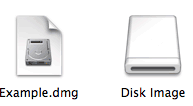
You click on the dmg file and you may have a file that looks similar to the image on the right – it’s called a disk image. After you drag the app file to your applications folder you will ctrl click on this disk image and “eject” it.
In the case of Firefox you will download the dmg file and on the same page you will have great instructions for what to do next. The screenshots below are what you will find on the Firefox page.
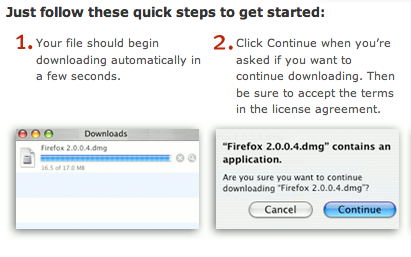
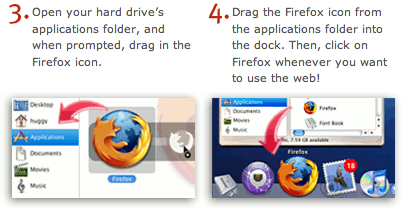
Basically you click on the dmg file. You then drag firefox.app file into the applications folder and you are done. When you double click it the Firefox icon it will open and the icon will show in the dock. If you use it all the time you can right-click or command-click and choose leave in dock. It will now stay in the dock even when you close it.
You can also right-click icons in the dock and choose remove from dock. This does not remove the actual application – it is still in the applications folder. You just don’t have the icon sitting in the dock anymore. You can do this with programs you rarely use to clean things us a bit.
Soooo – the Macintosh HD icon is what you click to find the main folders, including the Applications folder where your programs live. If you want to install software you will download a dmg file (sometimes it may be a zip file) that you click to open. Drag the app file to the Applications folder and you have installed your first program on your Mac!
Do you want the whole screen?
Command-Shift-3: Take a screenshot of the screen, and save it as a file on the desktop
Do you want just the window you are working in?
Command-Shift-4, then space, then click a window: Take a screenshot of a window and save it as a file on the desktop
Do you want to select a particular part of the screen?
Command-shift-4Â (your cursor will become a cross you can drag across and down to select the area to make a screenshot)
Now if you want to take the screenshot and just save it to the clipboard you will do the same thing only add ctrl. For example: Command-Control-Shift-3
The same with the others – just hold down ctrl too. Why would you want to do this? Instead of having this picture sitting on your desktop you might want to open your email and paste it there and send it to me to show me a problem you are having. You might want to paste the picture into a document or a presentation to show a step in a process you are teaching.
If you just got your Mac, you’re operating system version is Leopard and you can also do the following:
Hold down space to lock the size of a selection and move it when the mouse moves.
Hold down shift to resize only one edge of the section
Hold down option to resize selection without the center moving.
(Because I am using Tiger I haven’t had the opportunity to try those last keystrokes out but I have used the other commands often. If I have made an error with these last commands I hope someone will let me know!)